

BluePhoenix project manager: the dashboard, git tools, AI and sync explained
A free desktop app that puts every project's git state, commands, to-dos and logged time on one screen, and what it still lacks
On this page
- BluePhoenix at a glance
- What is the BluePhoenix project manager?
- The dashboard: real git state on every card
- The Git tab
- Editors, terminals and build detection
- To-dos, notes and time tracking
- To-dos and pages
- Time tracking
- Files, changelogs and automations
- The command palette
- AI features: local with Ollama or your own key
- Optional sync and the iPhone app
- How to install BluePhoenix and keep it updated
- Is BluePhoenix free? Price, version and beta status
- BluePhoenix's limitations
- Who is BluePhoenix for?
- Frequently asked questions
The BluePhoenix project manager is a free desktop app from MintFlow that puts every project folder you work in on one dashboard, with its real git branch and state, its build and dev commands, to-dos, Markdown notes and logged time. Version 0.2.2, released on 30 October 2026, is current, but macOS is the only build the download page offers today: Windows and Linux are marked "coming soon", and the iPhone companion is a beta.
AI is optional. It writes commit messages, changelogs and prompts for coding agents, using a local model through Ollama, LM Studio or llama.cpp, or a cloud provider with your own API key. Sync is optional too, and runs through a PostgreSQL database that you own rather than a MintFlow account.
BluePhoenix at a glance
| Item | Details |
|---|---|
| Current version | 0.2.2, released 30 October 2026 |
| Price | Free, no account needed |
| Download today | macOS 11 or later |
| Marked coming soon | Windows 10 or later (64-bit), Linux (64-bit, GTK 3, AppImage and .deb) |
| iPhone | Companion app 0.2.0, a beta distributed as an .ipa file |
| Built with | Tauri v2, Rust, React and TypeScript; SwiftUI for iPhone |
| Your data | A local SQLite database, with secrets in the system keychain |
| AI | Optional: local models or your own key for a cloud provider |
| Sync | Optional, through your own PostgreSQL 12 or later database |
| License | None stated; the source code is public on GitHub |
What is the BluePhoenix project manager?
BluePhoenix answers the questions you ask when you come back to a project: which branch was I on, what's left to do, how do I run this, and how long did it take. You point it at a folder and it reads the project's name and description, its type, its GitHub address from the origin remote and the commands it can run. From then on, the project is a card on the dashboard.
It's built for one person's own work. The site describes no shared workspaces, roles or comments, and sync goes to a database only you control. It also isn't limited to code: choose "Track something without a folder" for a university course, research or a design job, and you still get to-dos, notes and time tracking, with the git, terminal, file and command features switched off.
It's a Tauri and Rust app, which BluePhoenix's site credits for keeping it small and quick to open. The 0.2.2 macOS disk image on GitHub is about 7 MB.
The dashboard: real git state on every card
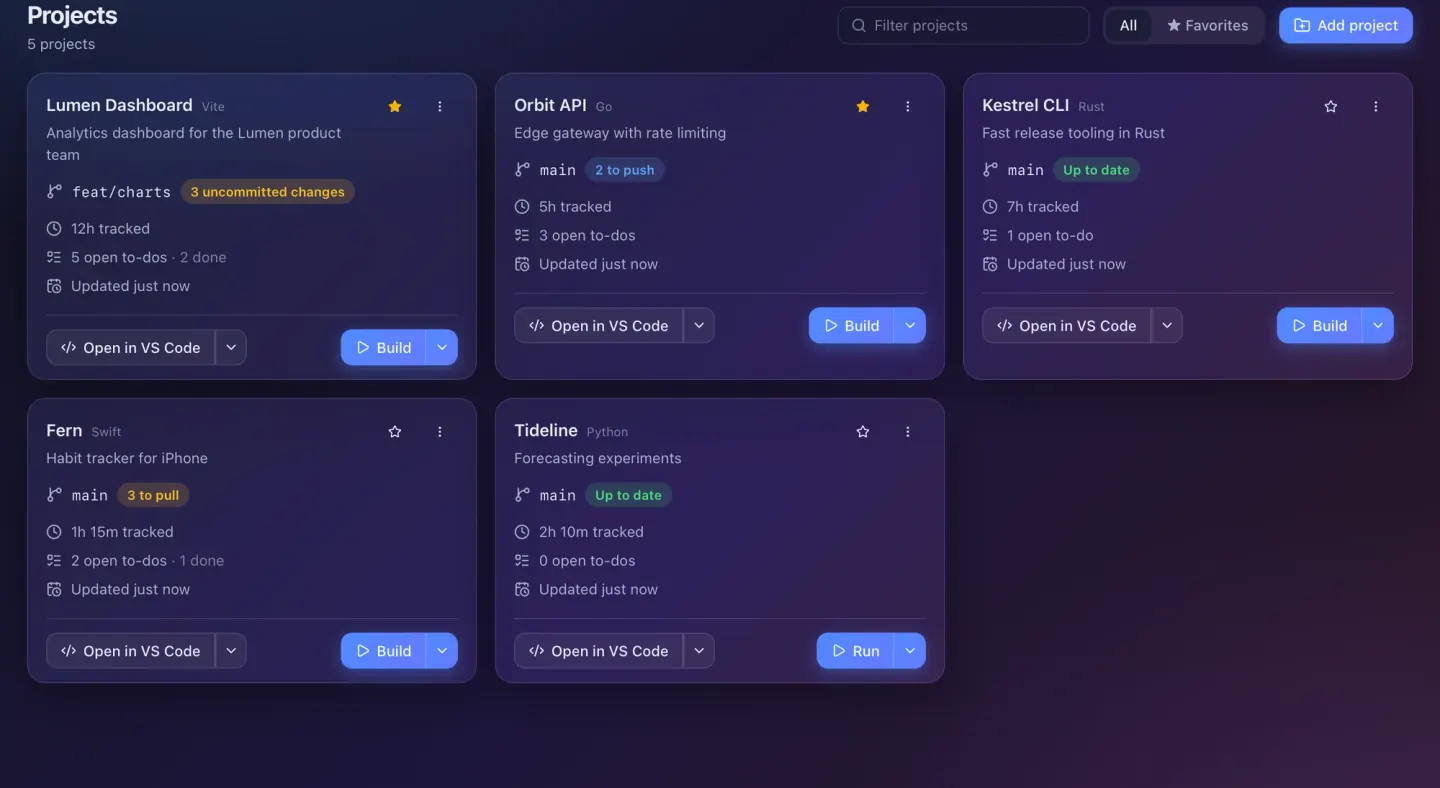
Each card shows the project's title, type, the branch your folder is on right now (not the repository's default branch), total time tracked, open to-dos and when anything last changed. Starred and recently opened projects sit at the top, and a Favorites filter shows only the starred ones.
The branch row carries one of these badges:
| Badge | Meaning |
|---|---|
| Up to date | Nothing to commit, push or pull |
| N uncommitted changes | Edited, staged or new files |
| N to push | Local commits not on the remote yet |
| N to pull | Remote commits you don't have (run Fetch first to refresh the count) |
| Diverged | Both of the above |
| N conflicts | A merge needs your attention |
| No upstream | The branch isn't linked to a remote yet; a push sets that up |
| Not a git repo | The folder isn't under git; the Git tab offers git init |
States refresh when you bring the window to the front and once a minute, and immediately after you fetch, pull or push. Below the divider, Open in… opens the folder in your default editor (the arrow offers other editors, the embedded terminal, your system terminal or the folder itself), and the blue Run command button runs the project's main command, usually the build. The ⋯ menu adds fetch, pull, push, stash, apply last stash, open GitHub, open website, edit and remove.
The Git tab
BluePhoenix drives the git program already on your computer, so your SSH keys and credential helper work as they do in a terminal. It never asks for a password; if git needs one, you get an error instead of a hung prompt. Inside a project's Git tab you can:
- stage or unstage individual files, read each diff, then Commit or Commit & push,
- create, switch, merge and delete branches, with Abort merge if a merge conflicts,
- browse recent commits and their full changes,
- create a stash, apply the latest one and see the full stash list.
Editors, terminals and build detection
BluePhoenix lists the editors it finds on your machine: Visual Studio Code (and Insiders), Cursor, Windsurf, Zed, Sublime Text, JetBrains IDEs including WebStorm, IntelliJ IDEA, PyCharm, PhpStorm, GoLand, CLion, RustRover and Rider, plus Android Studio, Xcode, Nova, BBEdit and Notepad++. Set a global default in Settings → Editors & terminals, and override it for a single project.
For terminals you get two choices. The embedded terminal has several tabs per project, and they keep running while you switch tabs or projects. Or BluePhoenix can open your system terminal: Terminal, iTerm, Warp, Ghostty, Alacritty, kitty or WezTerm on a Mac; Windows Terminal, PowerShell, Command Prompt or Git Bash on Windows; GNOME Terminal, Konsole and others on Linux.
Commands are where it saves the most typing. When you add a project, BluePhoenix detects commands from package.json scripts (using the package manager your lockfile points to), Cargo, Makefile, justfile, Go, Maven, Gradle, Composer, Flutter and Docker Compose, and recognizes project types from Node.js, React and Next.js to Rust, Python, Django, Go, Java, PHP, Laravel, Flutter, Swift, .NET, Ruby and C/C++. You untick what you don't want. Later you can run Detect from project again, press Scan with AI to have a model propose more, or add your own, optionally from a sub-folder such as backend. Star one as the main command and it becomes the blue button on the card. Commands run in a login shell, so they see the same tools as your terminal.
To-dos, notes and time tracking
To-dos and pages
Each project has its own to-dos, organized into pages you create, such as Roadmap, Bugs, Ideas or Exam prep, plus a General page and an All view. Every page has a Markdown notes area with Edit, Split and Preview modes that supports headings, task lists, tables, links and code blocks, and saves automatically. A to-do has a status (to do, in progress, done), a priority, a due date and its own Markdown notes. Drag to reorder in Manual order, or sort by priority.
Time tracking
Time is logged, not timed. Press 10, 15, 30 or 45 minutes, or 1, 2, 3, 4 or 8 hours, and that much time is added right now with a timestamp. Before you press, you can add a note, attribute the time to a specific to-do, or set an earlier date for work you did before. There's also a custom amount. The Time tab shows today, the last seven days and the total, a 14-day chart and a history grouped by day. There's no start-stop timer, which the site frames as having no timers to forget.
Files, changelogs and automations
Files. The Files tab indexes up to 100,000 files per project, skipping .git, node_modules and anything in .gitignore. Search matches any part of the path, and a click opens the file in your editor.
Changelogs. Pick the last 15, 30 or 100 commits, or everything since a tag, and the AI writes release notes grouped as Added, Changed, Fixed and Removed, a short summary, or a pull-request description. The commit list on the left shows exactly what the model sees. This tab needs an AI provider.
Automations (new in 0.2.2). Automations, documented in the GitHub repository rather than on the website so far, run shell commands across your projects on a trigger: at launch, at quit, on a schedule while the app is open, after a commit made in BluePhoenix, or manually. Conditions can skip projects that were edited recently, aren't clean, or aren't git repositories. Templates include cargo clean for idle Rust and Tauri projects, a git pull at launch when there are no local changes, git fetch --all --prune every six hours, removing node_modules from Node projects untouched for 14 days, and a package audit. Runs stop after 15 minutes, and automations stay on the computer that created them. The templates use POSIX shell syntax, so on Windows, where commands run in PowerShell, you have to edit them first.
Command line. Version 0.2.2 also installs a bluephoenix command, documented in the repository. bluephoenix add adds the current folder as a project, and bluephoenix commit stages everything, asks your chosen AI model for a commit message and commits; add -push to push as well.
The command palette
Press ⌘K on a Mac or Ctrl+K on Windows and Linux. From anywhere you can jump to a project, the dashboard or Settings, add a project, fetch every project at once, refresh all git states, switch theme or check for updates. Inside a project, more actions appear: fetch, pull, push, stash and apply, open in any editor or terminal, run any of the project's commands, log 10, 15, 30, 60 or 120 minutes, jump to a tab, reveal the folder, open GitHub or the website, and toggle the favorite star.
AI features: local with Ollama or your own key
Everything AI in BluePhoenix sits behind a button:
| Feature | Where |
|---|---|
| Commit message from your staged changes | Git tab → Commit → Generate |
| Prioritize open to-dos, with a reason for each | To-dos tab → Prioritize with AI |
| A ready-to-paste prompt for an AI coding assistant, built from a to-do and an overview of the repository | To-do details → Generate |
| Changelog, summary or PR description | Changelog tab |
| Scan a repository for commands to import | Add project dialog, or Commands tab → Scan with AI |
You set it up under Settings → AI. The local options are Ollama, LM Studio, llama.cpp with a GGUF file (BluePhoenix can start llama-server for you), or any OpenAI-compatible local server such as vLLM or LocalAI. According to the repository's AI guide, BluePhoenix starts Ollama when the app opens if it isn't running (a setting turns that off) and tries to start LM Studio's server too. The cloud options are OpenAI, Anthropic, OpenRouter, Google Gemini, Groq, Mistral, DeepSeek, xAI and Together AI, or any other OpenAI-compatible address. You paste your own key, and it goes into the system keychain (macOS Keychain, Windows Credential Manager or the Linux Secret Service), not BluePhoenix's data file.
The privacy rule is simple. With a local model, prompts stay on your computer. With a cloud provider, the relevant text (a diff, to-do titles, commit messages, file names and a few key project files) goes to that provider, and only when you press a button. The docs also warn that AI answers can be wrong, so read a generated commit message or command before you use it.
The to-do-to-prompt feature is meant for handing work to a coding agent. If you're choosing one, our best AI coding agents guide compares the main options, and MintFlow's own agent has its own FireMoon Harness guide.
Optional sync and the iPhone app
Sync keeps projects, to-dos, notes, commands and time entries the same across your computers and iPhone. It uses a PostgreSQL 12 or later database you own. Neon is the default because it has a free plan, and Supabase, Railway or your own server work too. Setup takes a few steps:
- Create a database and copy its connection string. On Neon, turn connection pooling off first.
- In BluePhoenix, open Settings → Cloud sync, paste the string, press Test connection, then Connect & sync.
- Repeat on your other computers with the same string.
BluePhoenix creates its own tables (prefixed bp_), syncs every minute and has a Sync now button. The connection string contains your database password, so it's kept in the system keychain. If the same item changes on two devices before they sync, the most recent change wins, and deletions sync everywhere. Folder locations, editor and terminal choices, files and git state stay on each computer, so a project that arrives from another machine shows "No folder" until you point it at one.
The iPhone app connects with the same string. You can add projects, tick off and edit to-dos, edit notes and log time, offline if needed, with changes syncing when you're back online. Commands appear for reference only, because they run on your computer. The download page offers the iPhone beta as an .ipa file on GitHub (version 0.2.0) with no App Store link and no install instructions. The repository's iPhone notes target iOS 17 or later and describe building the app yourself in Xcode.
How to install BluePhoenix and keep it updated
You need Git installed to see branches and run git actions (on a Mac, xcode-select --install provides it). An editor and an AI provider are optional.
On a Mac, download the .dmg from the download page, open it and drag BluePhoenix into Applications. The builds aren't signed with a paid developer certificate yet, so macOS may block the first launch: right-click the app and choose Open, or click Open Anyway in System Settings → Privacy & Security. On Windows, the docs describe the same situation with SmartScreen (More info, then Run anyway).
Windows and Linux are listed as coming soon. The site isn't consistent about this: the home page and its FAQ say BluePhoenix is free for macOS, Windows and Linux. This guide goes with the download page, because the release files and the update feed back it up. The 0.2.2 release on GitHub does carry Windows and Linux .zip files, but the site doesn't link them, and the update feed the app reads lists no Windows or Linux installer. The getting-started guide also mentions .exe, .msi, .AppImage and .deb installers that don't exist on the release yet.
Updates are semi-automatic. BluePhoenix checks for a newer version each time it starts, and you can turn that off in Settings → Updates. When one exists, a green Update button appears in the top bar. Press Download update and the installer is saved to your Downloads folder; then open it and replace the old app (on a Mac, drag the new one into Applications). Projects and settings are kept because they live in a separate data folder: ~/Library/Application Support/com.astrodev.bluephoenix on a Mac.
Is BluePhoenix free? Price, version and beta status
Yes, BluePhoenix is free, with no account and no paid tier mentioned anywhere on its site. The only costs come from what you connect: a cloud AI provider bills you under its own pricing, and a sync database may cost money beyond a free plan such as Neon's.
The version history is short. Version 0.2.0 shipped on 18 October 2026 in a GitHub release titled "MacOS & iOS Beta v2". Version 0.2.2 followed on 30 October with automations and smaller improvements; its notes say the iOS release is unchanged. MintFlow's products page labels BluePhoenix as a beta, and the version number is well short of 1.0. The site credits a single lead developer.
On licensing, the source code is public on GitHub, but the repository has no license file and neither the site nor the README names one.
BluePhoenix's limitations
- One platform for now. Only macOS is downloadable from the site. The download page says the Mac build covers Apple Silicon and Intel, but the only 0.2.2 Mac file is labeled aarch64 (Apple Silicon), and the README's build script needs a
--universalflag to cover Intel. Intel support for this release isn't confirmed. - Unsigned builds. Expect a security warning on first launch until the builds are signed.
- The iPhone app is hard to get. It's an .ipa file with no App Store link or install guide, and it's still on 0.2.0.
- It now writes into your folders. The site's FAQ says BluePhoenix doesn't touch your files, and removing a project still never deletes anything. But since 0.2.2, adding a project writes a small
.bluephoenixJSON file into its folder, according to the repository docs, and BluePhoenix doesn't add it to.gitignore. The command-line tool also installs a launcher and, on macOS and Linux, may add a marked block to your shell startup file. You can remove both in Settings → Command line. - Git sign-in must already work. BluePhoenix can't show a password prompt, so push and pull need an SSH key or credential helper set up.
- Some features need AI. Changelogs, AI prioritizing, prompt writing and command scanning need a provider. The rest of the app works without one.
- Sync is do-it-yourself. You create and maintain the PostgreSQL database. Conflicts resolve by most recent change, so device clocks that are minutes apart can reorder close edits, and automations never sync.
- Linux has rough edges. The frosted glass becomes a solid gradient, and API keys need a running Secret Service such as GNOME Keyring or KWallet.
- Time tracking is manual. There's no running timer, so you log time after the fact.
- The docs trail the code. Automations and the command line appear only in the repository docs, the website still lists installers that aren't published, and the home page promises Windows and Linux builds that the download page marks as coming soon.
Who is BluePhoenix for?
If you're a developer on a Mac who keeps several repositories going at once and wants one screen that shows their real git state and runs their builds, that's the job BluePhoenix is built for. It's free, it keeps data local by default, and the AI parts can run entirely on your own machine. Students and freelancers who just want per-project to-dos, notes and logged hours can use it without any git at all.
Wait if you're on Windows or Linux, need team features or a running timer, or want a polished iPhone app from the App Store. It's an early beta with a single lead developer, and the gaps above are the price of trying it now.
Frequently asked questions
Is BluePhoenix free?
Yes. BluePhoenix is free to download and use, with no account. If you connect a cloud AI provider or a paid database for sync, those services charge under their own pricing.
Does BluePhoenix run on Windows and Linux?
Not officially yet. The download page lists Windows 10 or later and 64-bit Linux as coming soon, and only offers a macOS build. Windows and Linux zip files appear on the 0.2.2 GitHub release, but the site doesn't link them.
Do I need AI to use BluePhoenix?
No. Git state, commands, to-dos, notes, time tracking and the command palette all work without it. AI only powers commit messages, changelogs, to-do prioritizing, coding-agent prompts and command scanning.
Does BluePhoenix send my code anywhere?
Not by default. Data stays in a local database, and nothing leaves your computer unless you turn on sync to your own PostgreSQL database or press an AI button with a cloud provider selected. With a local model through Ollama, LM Studio or llama.cpp, prompts stay on your machine.
Is there a BluePhoenix iPhone app?
Yes, as a beta. Version 0.2.0 is offered as an .ipa file on GitHub, not through an App Store link. It syncs through the same PostgreSQL database as the desktop app and lets you edit to-dos and notes and log time.
Does BluePhoenix change files in my projects?
It runs git and your own commands on request, and removing a project never deletes files. Since version 0.2.2, though, adding a project writes a small .bluephoenix settings file into the project folder.
Sources
- BluePhoenix, the project manager for developers, BluePhoenix
- BluePhoenix features, BluePhoenix
- Get BluePhoenix (download), BluePhoenix
- Getting started, BluePhoenix docs
- The dashboard, BluePhoenix docs
- Projects, BluePhoenix docs
- Git, BluePhoenix docs
- Editors, terminals and commands, BluePhoenix docs
- To-dos and pages, BluePhoenix docs
- Time tracking, BluePhoenix docs
- Files, BluePhoenix docs
- Changelogs, BluePhoenix docs
- Cloud sync and the iPhone app, BluePhoenix docs
- AI features, BluePhoenix docs
- Command palette, BluePhoenix docs
- Settings, BluePhoenix docs
- Updates, BluePhoenix docs
- Troubleshooting and FAQ, BluePhoenix docs
- BluePhoenix repository and README, GitHub
- BluePhoenix releases, GitHub
- Automations, BluePhoenix repository docs
- Command line, BluePhoenix repository docs
- Projects and the .bluephoenix file, BluePhoenix repository docs
- AI setup, BluePhoenix repository docs
- BluePhoenix for iPhone, BluePhoenix repository
- BluePhoenix download feed (bluephoenix-d.json), MintFlow Releases on GitHub
- Products, MintFlow
- Neon pricing, Neon
Was this helpful?
Thanks, noted. It helps decide what gets updated first.


